Scrib Desktop is the Windows companion to the Scrib encrypted notes app. It is a tabbed text editor that encrypts files with AES-256, handles plain text and rich text, and works fully offline with no account and no tracking. The last release post covered 1.2.0. Since then there have been two releases, and this 1.5.0 build bundles both into one download.
The headline is image embeds. The rest is speed and safety.
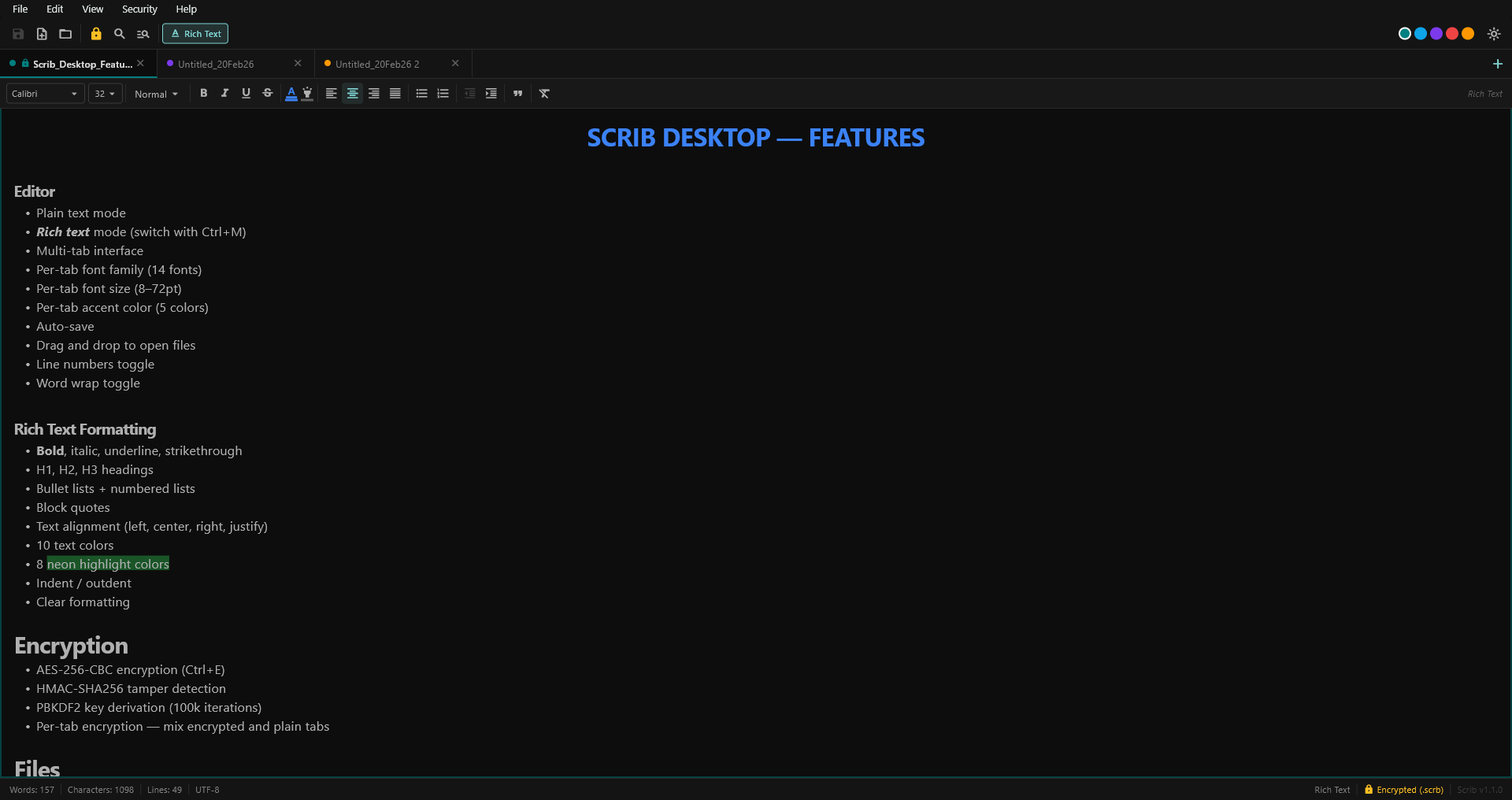
Scrib Desktop. A multi-tab encrypted editor for Windows, now with images in rich-text notes.
Images that stay encrypted
For a tool called "the encrypted editor", the way images are stored matters more than the fact that they can be stored at all. The obvious approach, dropping a file path into the note and pointing at a picture on disk, would have left that picture sitting next to your encrypted note in plain view. That defeats the point.
So Scrib Desktop does it differently. When you insert an image, the file is read and embedded inside the note's own content as base64 data. When you save the note as a .scrb file, that content, image and text together, is encrypted with AES-256-CBC and authenticated with HMAC-SHA256. There is no separate image file. The picture is exactly as private as the words around it, and it travels with the note as a single encrypted file.
To insert one: switch the tab to Rich Text with Ctrl+M, then use Insert › Image from the menu bar, or the image button on the rich-text toolbar. Pick a file and it lands at your cursor.
Just about every image format
The goal was to accept as many formats as a Windows desktop app reasonably can. The common ones, PNG, JPEG, GIF (animation preserved), WebP, BMP, and SVG (as a true vector), render directly. The long tail, TIFF, TGA, ICO, PSD, PNM, EXR and several others, is decoded and converted to PNG at the moment you insert it, so they display reliably without bloating the note.
Two honest limits. HEIC and AVIF are not supported, because there is no dependable open-source decoder for them in this stack; they are rejected with a clear message rather than failing silently. And large images are downscaled on insert (the longest side is capped) so a single phone photo does not turn a small note into a heavy one. Everything stays inside the encrypted file either way.
Closing a note is now instant
This was the most-felt annoyance in earlier builds. Pressing the X on a tab, or switching tabs, used to pause for up to about a second when the note you were moving to was large, especially a long formatted note. The window appeared to hang before the tab actually closed.
The cause was not encryption. Closing a tab does no saving and no crypto. The cost was that the editor laid out the entire next note on the screen in one synchronous step, on the same frame as the close, before anything could repaint. On a large rich-text note that single layout pass dominated the frame.
1.5.0 splits that work across frames. The tab now closes and repaints immediately, and the next note's content fills in on the following frame instead of blocking the close. On a 258 KB rich-text note, the close went from roughly 590 milliseconds of frozen window to about 38. In day-to-day use the tab simply disappears the instant you click the X.
A real tab menu
Right-click any tab and you get Close, Close Others, Close to the Right, Close All, and Rename. Closing a batch is applied in one step, and any tab with unsaved changes still prompts before it closes, so a bulk close never silently drops work. Tabs also highlight on hover now, and hovering a tab shows its full file path, which helps when several notes share a similar name.
Encrypting a file now removes the plaintext original
This one is a security fix worth calling out. In earlier builds, toggling encryption on a .txt or .rtf file wrote a new encrypted .scrb next to it but left the original unencrypted file on disk. You ended up with both: the encrypted copy you wanted and a plaintext copy you did not.
1.5.0 deletes the original once the encrypted copy is confirmed written, and tells you if it could not. Decrypting works the same way in reverse: the stale .scrb is removed when you write the plain version. The set-password dialog also gained a strength meter and a plain reminder that there is no password recovery, because for an offline encrypted tool, the passphrase is the whole game.
Smaller touches
- A Line Numbers toggle in the View menu (the gutter existed but there was no way to turn it on).
- A Keyboard Shortcuts reference, opened from Help or by pressing
F1. - The usual round of correctness fixes, all covered by tests. The suite now sits at 233.
Your files are safe, and there is no installer
The .scrb file format and your settings are unchanged in this release. A note without images is byte-identical to before, and every existing encrypted file opens with the same password. Image embeds live inside rich-text notes, so the place to keep an illustrated note is a .scrb (or a .txt if it is plain text); a .rtf export is text-only and drops images.
Scrib Desktop ships as a portable zip, not an installer. Nothing touches your registry or system folders.
Download and upgrade
- Grab
scrib-desktop-v1.5.0-windows.zipfrom the v1.5.0 release page. - Extract it anywhere.
- Run
scrib_desktop.exe.
Windows may warn about an unsigned app. Choose More info, then Run anyway. Your existing files and settings are untouched. The full CHANGELOG and the source are on GitHub. Issues and pull requests are welcome.
Questions
Can you put images in an encrypted note?
Yes. Scrib Desktop 1.5.0 embeds the image inside the note itself, so when the note is saved as a .scrb file the image is AES-256 encrypted along with the text. No separate image file is left on disk.
What image formats are supported?
PNG, JPEG, GIF, WebP, BMP and SVG render directly. TIFF, TGA, ICO, PSD, PNM, EXR and others are converted to PNG on insert. HEIC and AVIF are not supported and are rejected with a message.
Are the images really encrypted?
Yes. The image is stored as base64 inside the note's content, which is encrypted with AES-256-CBC plus HMAC-SHA256 in a .scrb file. The picture is as private as the text beside it.
How do I insert an image?
Switch the tab to Rich Text with Ctrl+M, then use Insert › Image from the menu, or the image button on the rich-text toolbar.
Is it free, and where do I download it?
Free and open source under GPL-3.0. Download the zip from GitHub Releases, extract, and run scrib_desktop.exe. No installer, no account.
Keep Reading
- Scrib Desktop 1.7.0. Lock Encrypted Notes Without Closing Them: locked tabs, idle auto-lock, session restore, and a command palette.
- Scrib Desktop 1.2.0. Atomic Saves, Crash Recovery and Undo-Safe Replace: the previous release, and how saves were made crash-safe on Windows.
- Scrib Desktop Is Now Open Source: the original announcement, how the encryption works, why Scrib Desktop exists.
- Notes App Encryption at Rest: What It Protects and What It Does Not: what AES-256 actually protects against.
- Best Private Notes Apps for Android: the Android-app landscape, if Desktop is not quite what you need.
Scrib on Android
Looking for encrypted notes on your phone? Scrib for Android has AES-256 encryption, PIN lock, Private Vault, and works completely offline. No account required.