Scrib Desktop is the Windows companion to the Scrib encrypted notes app: a tabbed text editor that encrypts files with AES-256, handles plain text and rich text, and works fully offline with no account and no tracking. The last release post covered 1.5.0. Since then, 1.6.0 shipped tables, movable images, and a calculator (recapped below), and this 1.7.0 build is about a gap that has bothered me since the first release.
The gap: once you typed a password, the note stayed decrypted until you closed it.
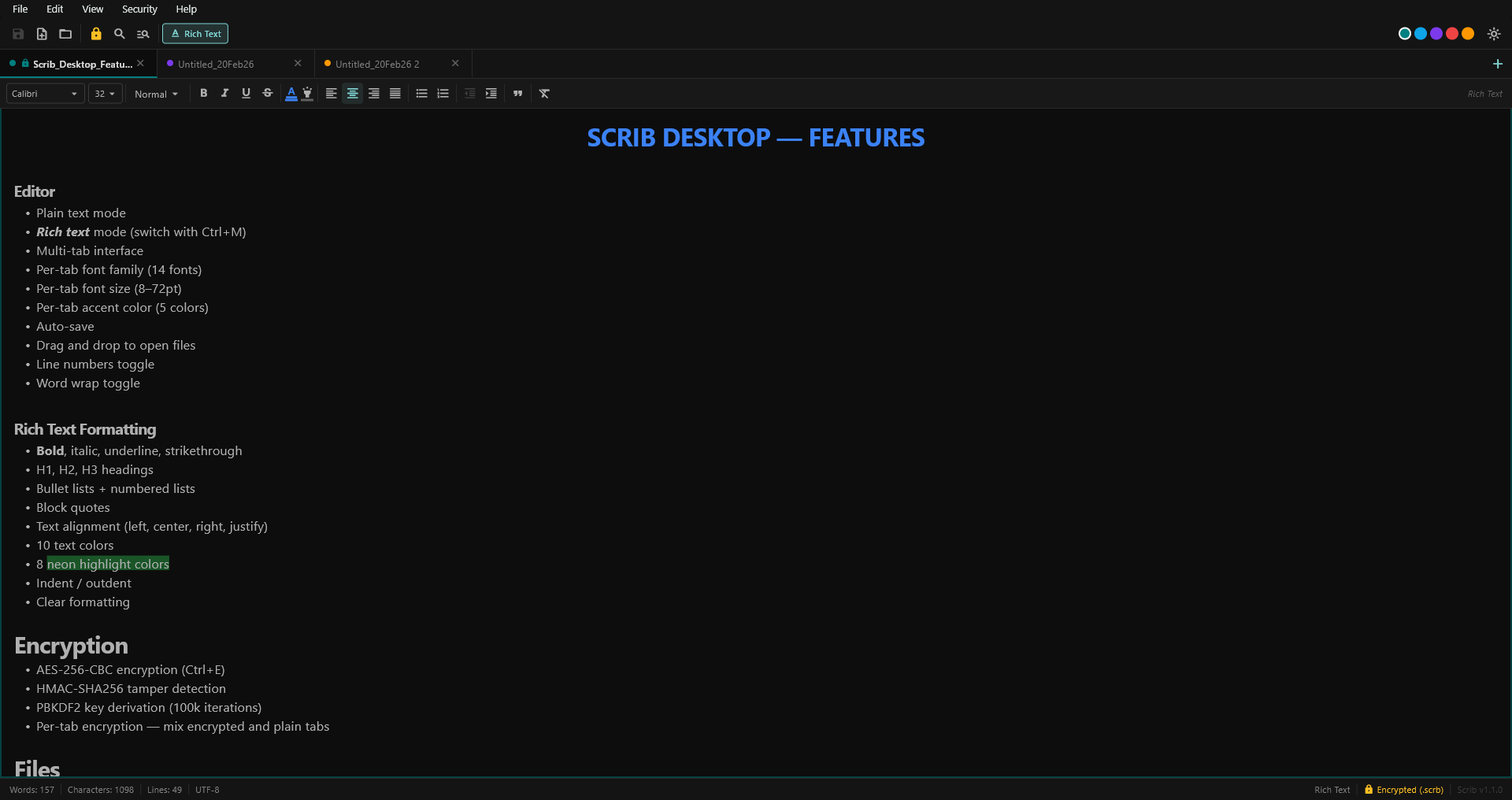
Scrib Desktop. A multi-tab encrypted editor for Windows. In 1.7.0, encrypted tabs can lock in place.
Locked tabs: encrypted notes that go back to being encrypted
An encrypted editor has an awkward truth at its center. The encryption protects the file on disk. While the note is open, its contents sit decrypted in the editor, and the password sits in memory so saves can re-encrypt. Before 1.7.0, the only way to end that state was to close the tab and lose your place.
Now you press Ctrl+L. Three things happen, in order:
- Unsaved changes are saved, encrypted, to the file. Locking never discards work.
- The decrypted content and the password are wiped from the tab's state, and the rich-text document object is disposed.
- The tab stays open, showing a lock screen with the file name and an Unlock button. Re-enter the password (or press
Ctrl+Lagain) and the note reopens exactly where it was in your tab row.
The status bar reads Locked (.scrb) and the tab's lock icon turns gold, so you can see at a glance which notes are open, which are sealed, and get back into any of them in one keystroke. Lock All Encrypted Tabs in the Security menu seals everything at once: the walk-away command.
One honest note on what "wiped" means. Scrib removes the content and password from its editor state and disposes the in-memory document, but Dart (the language Scrib is built in) uses garbage collection, so freed memory is reclaimed by the runtime rather than actively zeroed. The threat model in the README spells this out. Locking is a strong shield against the person who sits down at your unlocked PC; it is not a defense against malware already running on your machine, and no editor feature is.
Auto-lock: the editor seals itself when you walk away
Locking manually is good. Not having to remember is better. Under Security › Auto-Lock Encrypted Tabs you can have every encrypted tab lock itself after 1, 5, or 15 minutes without a keystroke or mouse click. It saves before wiping, so it never costs you work, and it is off by default: nothing changes until you turn it on.
If you keep a journal, a password-adjacent scratchpad, or case notes open all day, this is the feature that makes the encryption mean something between saves. Step away for coffee; come back to lock screens.
Session restore that respects the encryption
Scrib Desktop now reopens the tabs you had open when you quit: same files, same order, same per-tab colors, same active tab. Most editors do this. The interesting part is what happens to encrypted files.
A naive restore would prompt you for three passwords before the window even paints, or worse, cache something it should not. Scrib does neither. The stored session records file paths only, never content and never passwords. At launch, plain files load normally, and every encrypted file comes back as a locked tab. Your workspace shape returns instantly; your secrets stay sealed until you ask for each one.
The toggle lives at View › Reopen Tabs on Launch. Turning it off does one more thing: it deletes the stored session record, so the app keeps no list of what you had open. That is the same privacy standard as the rest of Scrib: features you can decline, and declining leaves nothing behind.
A command palette
Press Ctrl+Shift+P and type. Every command in the app is there: save, encrypt, lock, insert table, switch theme, change password, next tab. The matching is fuzzy, so lt finds Lock Tab and tdark finds Theme: Dark, with the matched letters highlighted. Arrow keys move, Enter runs, Escape leaves. The palette is state-aware: a locked tab offers Unlock Tab instead of Encrypt File, and the current auto-lock setting is marked.
The matcher is about a hundred lines of plain Dart in fuzzy_matcher.dart, no dependency added, and it has its own test suite. If you have ever wanted to see how fuzzy matching works, it is a readable place to start.
Change Password, in one step
Rotating the password on an encrypted file used to mean decrypt, save as plain, re-encrypt, and hope you deleted the intermediate. Now it is Security › Change Password: enter the new password (with the strength meter and no-recovery warning from 1.4.0) and the file is re-encrypted in place, one write, no plaintext ever touching the disk.
The safety work you cannot see
The dangerous edge case in a lock feature is not the locking; it is every code path that writes files. A locked tab's in-memory document is empty by design. If any save path (manual save, Save As, the auto-save timer, save-all-on-quit) ever treated a locked tab as savable, it would overwrite your encrypted file with an empty document. So in 1.7.0, every write path refuses locked tabs outright, and that refusal is covered by regression tests that byte-compare the file on disk before and after. The suite grew from 274 to 311 tests with this release, including round-trips that lock a modified note and confirm the edit landed encrypted in the file first.
If you skipped 1.6.0: tables, movable images, and a calculator
There was no blog post for 1.6.0, so its three features are worth a recap, because they made rich-text notes considerably more capable:
- Tables. A grid picker inserts up to 8 columns by 10 rows, cells are edited in place with a header row, and a hover toolbar adds or removes rows and columns. A table is stored inside the note, so in a
.scrbit is encrypted with the text. - Images that sit inline. An image now behaves like a large character: type beside it, align it, and resize or remove it on hover. The chosen size survives save and reopen. (Image embeds themselves arrived in 1.5.0, encrypted inside the note.)
- A built-in calculator. Operator precedence, parentheses, powers, modulo. It evaluates as you type and inserts the result at your cursor. It is a small hand-written parser, not
eval, so a note can never run code through it.
Your files are safe, and there is no installer
The .scrb file format and your settings are unchanged in 1.7.0. Every existing encrypted file opens with the same password, and a file saved by 1.7.0 opens in 1.3.0 or later. Scrib Desktop ships as a portable zip, not an installer: nothing touches your registry or system folders.
Download and upgrade
- Download
scrib-desktop-v1.7.0-windows.zip(direct link, about 13 MB). - Extract it anywhere.
- Run
scrib_desktop.exe.
Windows may warn about an unsigned app. Choose More info, then Run anyway. Your existing files and settings are untouched. The release page, full CHANGELOG, and the source are on GitHub. Issues and pull requests are welcome.
Questions
Can I lock an encrypted note without closing it?
Yes. Press Ctrl+L. Unsaved changes are saved first, then the decrypted content and the password are removed from the editor's state. The tab stays open as a lock screen; re-enter the password to unlock it in place.
Can Scrib lock notes automatically when I walk away?
Yes. Auto-lock (Security menu, off by default) locks every encrypted tab after 1, 5, or 15 minutes without a keystroke or click. It saves before locking, so it never discards work.
Does session restore expose my encrypted notes?
No. It stores file paths and tab colors only, never content or passwords. Encrypted files reopen locked, and turning the setting off deletes the stored session record.
What does the command palette do?
Press Ctrl+Shift+P and fuzzy-search every command in the app: save, encrypt, lock, insert table, switch theme, and more. Arrow keys plus Enter run it without the mouse.
Is it free, and where do I download it?
Free and open source under GPL-3.0. Download the portable zip, extract, and run scrib_desktop.exe. No installer, no account.
Will my existing .scrb files still open?
Yes. The .scrb format and settings are unchanged in 1.7.0. Every existing encrypted file opens with the same password.
Keep Reading
- Scrib Desktop 1.10.0. Saves That Keep Every Keystroke: the current release. Saves that record what they wrote, plus external-change detection.
- Scrib Desktop 1.5.0. Put Images in Encrypted Notes: image embeds that stay encrypted, and the instant-close performance work.
- Scrib Desktop Is Now Open Source: the original announcement, how the encryption works, why Scrib Desktop exists.
- Notes App Encryption at Rest: What It Protects and What It Does Not: the honest version of what AES-256 buys you, and what it does not.
- Best Notes Apps That Do Not Require an Account: the no-signup landscape, if you are choosing a notes tool.
Scrib on Android
Looking for encrypted notes on your phone? Scrib for Android has AES-256 encryption, PIN lock, Private Vault, and works completely offline. No account required.